How to Migrate from WordPress to Astro in 2026 (Step-by-Step)
A practical, step-by-step guide to moving a WordPress site to Astro - export your content, rebuild fast, set up redirects, and keep your SEO rankings intact.
WordPress still runs a huge share of the web, but in 2026 more site owners are moving off it - and Astro is one of the most popular places they land. The pitch is simple: a site that loads almost instantly, costs little or nothing to host, and has a much smaller security surface because there is no PHP runtime or database sitting in front of every page request.
This guide walks through the move end to end: what to expect, how to export your content, how to rebuild quickly, and - most importantly - how to do it without losing your search rankings. Astro maintains an official WordPress migration guide, and this article fills in the practical gaps around content export, design, dynamic features and SEO.
Rather not do any of this yourself? Our WordPress to Astro migration service rebuilds your site 1:1 - same design, URLs and rankings preserved, hosting included. The free audit tells you your exact fixed price.
Why move from WordPress to Astro?
The honest version: WordPress is excellent when you need a constantly updated, plugin-heavy, multi-author publishing machine. For most marketing sites, blogs, portfolios and small-business sites, that flexibility turns into weight - slow pages, plugin conflicts, security patches and hosting bills.
Astro flips the model. It renders your pages to static HTML at build time and ships almost zero JavaScript by default, so the browser gets a finished page instead of assembling one. Here is how the two compare for a typical content site:
| Dimension | WordPress | Astro |
|---|---|---|
| Page speed | Server-rendered PHP + database queries per request, often heavy | Static HTML, near-instant, frequently hits high Lighthouse scores |
| Hosting cost | Managed WordPress host, usually a monthly fee | Free tier on Cloudflare Pages, Netlify or Vercel for most sites |
| Security surface | PHP, database, plugins - a common attack target | No server runtime or database to attack on a static build |
| Maintenance | Core, theme and plugin updates, ongoing | Update dependencies when you choose; nothing to patch in production |
| Content editing | Full visual dashboard for any editor | Markdown, a headless CMS, or a visual editor |
| Dynamic features | Built in or one plugin away | Rebuilt with focused tools or external services |
The trade-off is real and worth stating up front: WordPress plugins and themes do not carry over. Astro’s own guide is blunt about it - you build the features you need rather than installing them. The good news is that most sites lean on only a handful of plugin features in practice, and the modern replacements are lightweight.
When to migrate, and when to stay
Move to Astro if your site is mostly content - a blog, docs, a portfolio, a company or product site - and you care about speed, cost and control. Think harder before migrating a site that depends on heavy, interactive WordPress functionality like membership areas, complex WooCommerce stores or deeply custom plugin workflows. Even then, you have a middle path: keep WordPress as a headless CMS (more on that below).
Step 1: Audit your WordPress site
Before touching anything, make a simple inventory. List your content types (posts, pages, custom post types), the plugins you genuinely rely on, your URL structure, and the pages that bring in the most traffic. Pull your top URLs from Google Search Console or your analytics - these are the ones you must not break.
This audit becomes your migration checklist and, later, your redirect map.
Step 2: Set up your Astro project
Create a new Astro project with the official starter. The blog template is a good base because it already includes content collections and example posts:
npm create astro@latest -- --template blogAstro 6 ships content collections backed by the Content Layer, plus a built-in Fonts API and other niceties, so a fresh project gives you a solid, modern foundation. If you would rather not build the design from scratch, start from a finished theme instead and drop your content in - that is the fastest route, and we cover it in Step 5.
Step 3: Export your WordPress content
In your WordPress dashboard, go to Tools > Export and choose All content. WordPress generates a WXR file, which is an XML export of your posts, pages and metadata.
That XML is not directly usable in Astro, so convert it to Markdown with frontmatter. Two community tools handle this well:
- wordpress-export-to-markdown - turns your WXR export into a folder of Markdown files with YAML frontmatter, and can download your post images at the same time.
- DeWP - another converter that maps WordPress content into a structure Astro can consume.
Run the converter against your export and you will end up with one Markdown file per post, each carrying its title, date, slug and categories in frontmatter. Drop those files into your Astro content collection directory (for example src/content/blog/).
Step 4: Move your images and media
If your converter downloaded images, place them where your theme expects them - either in public/ for simple static references, or in src/assets/ to take advantage of Astro’s built-in image optimization. Then do a search-and-replace across your Markdown to fix the image paths so they point at the new locations rather than your old wp-content/uploads URLs.
Step 5: Rebuild the design
This is where a migration either drags on for weeks or wraps up in a weekend.
Rebuilding your old WordPress theme by hand means recreating every layout, component and responsive breakpoint in Astro. It is doable, but it is the slowest part of the whole project.
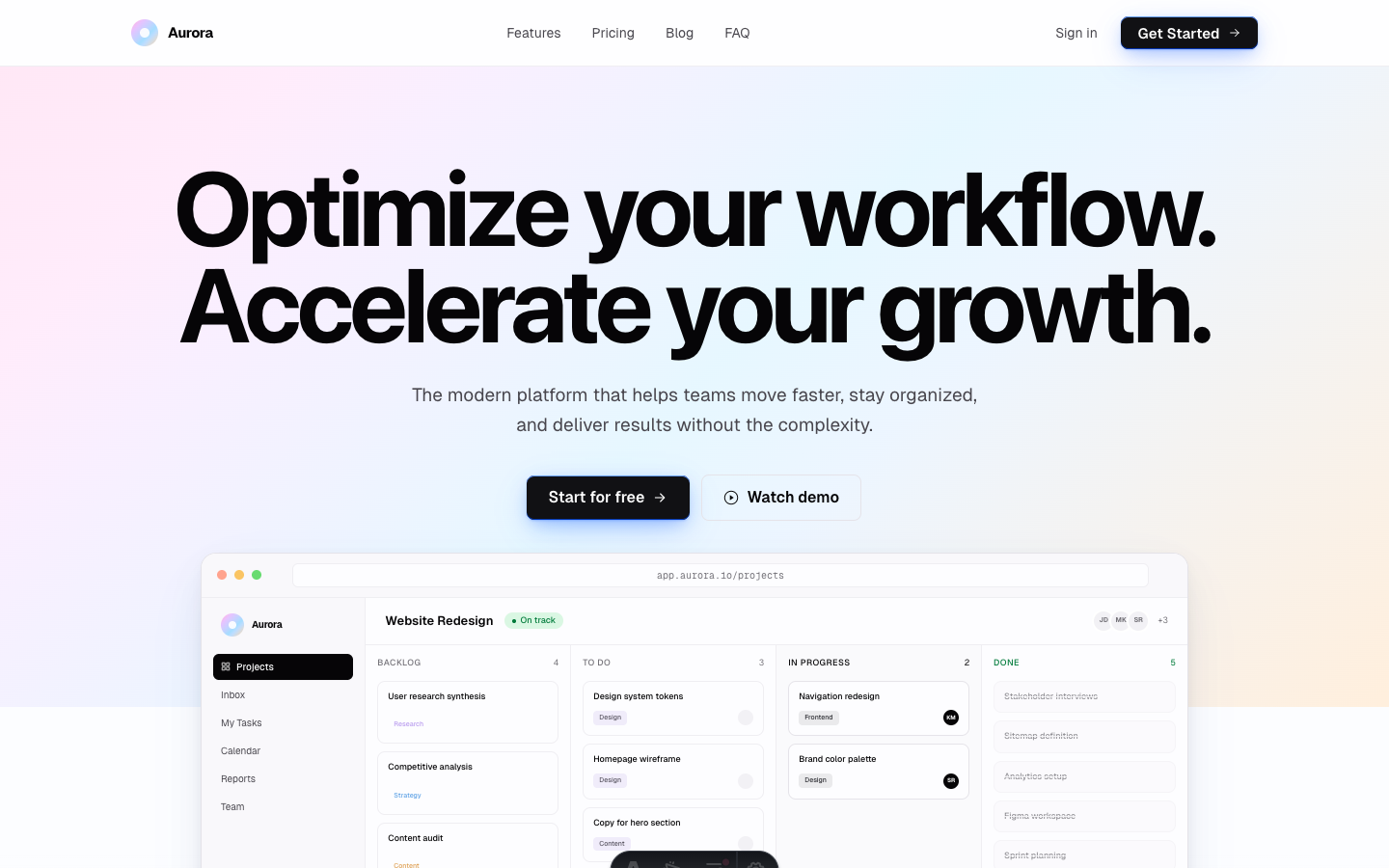
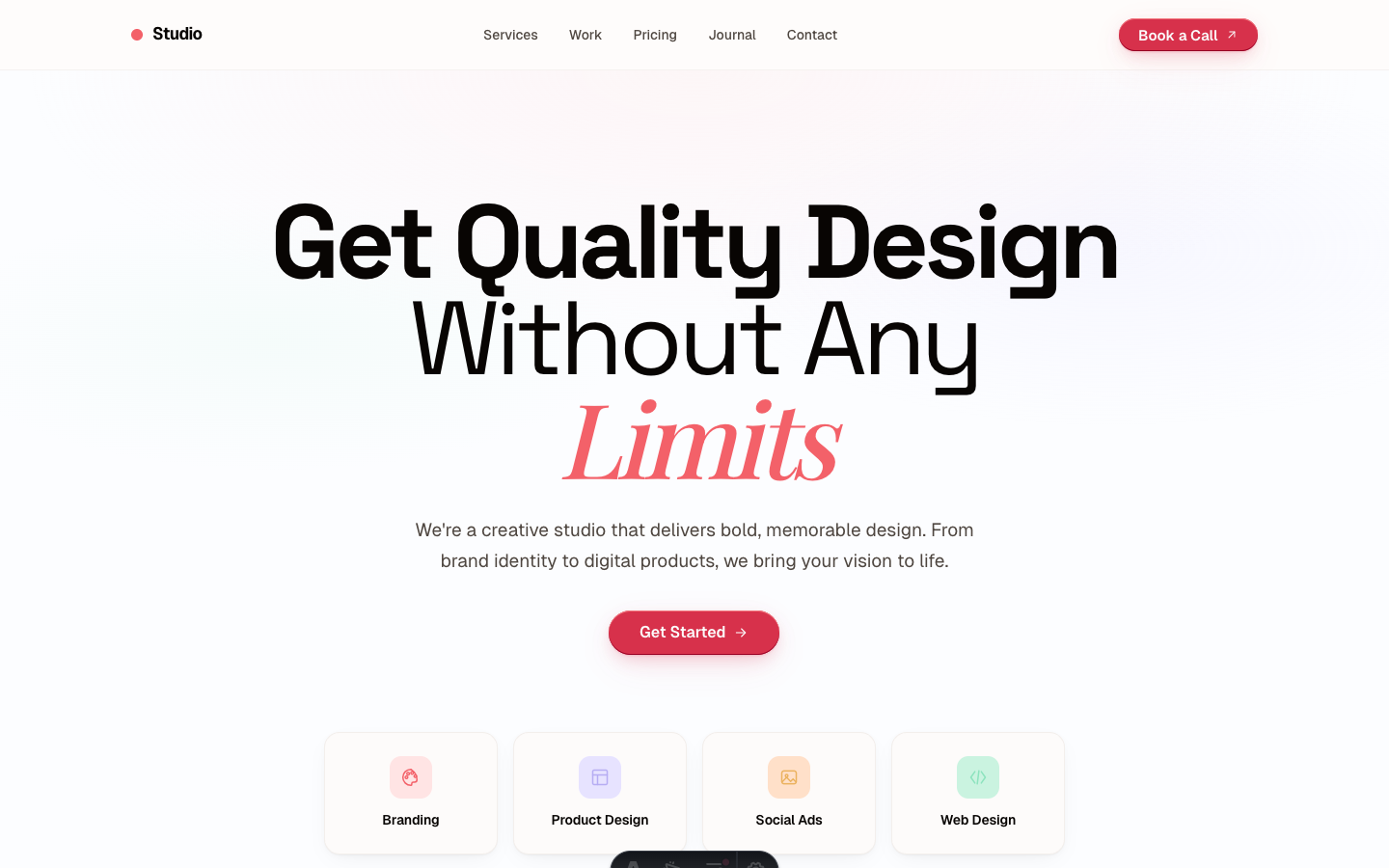
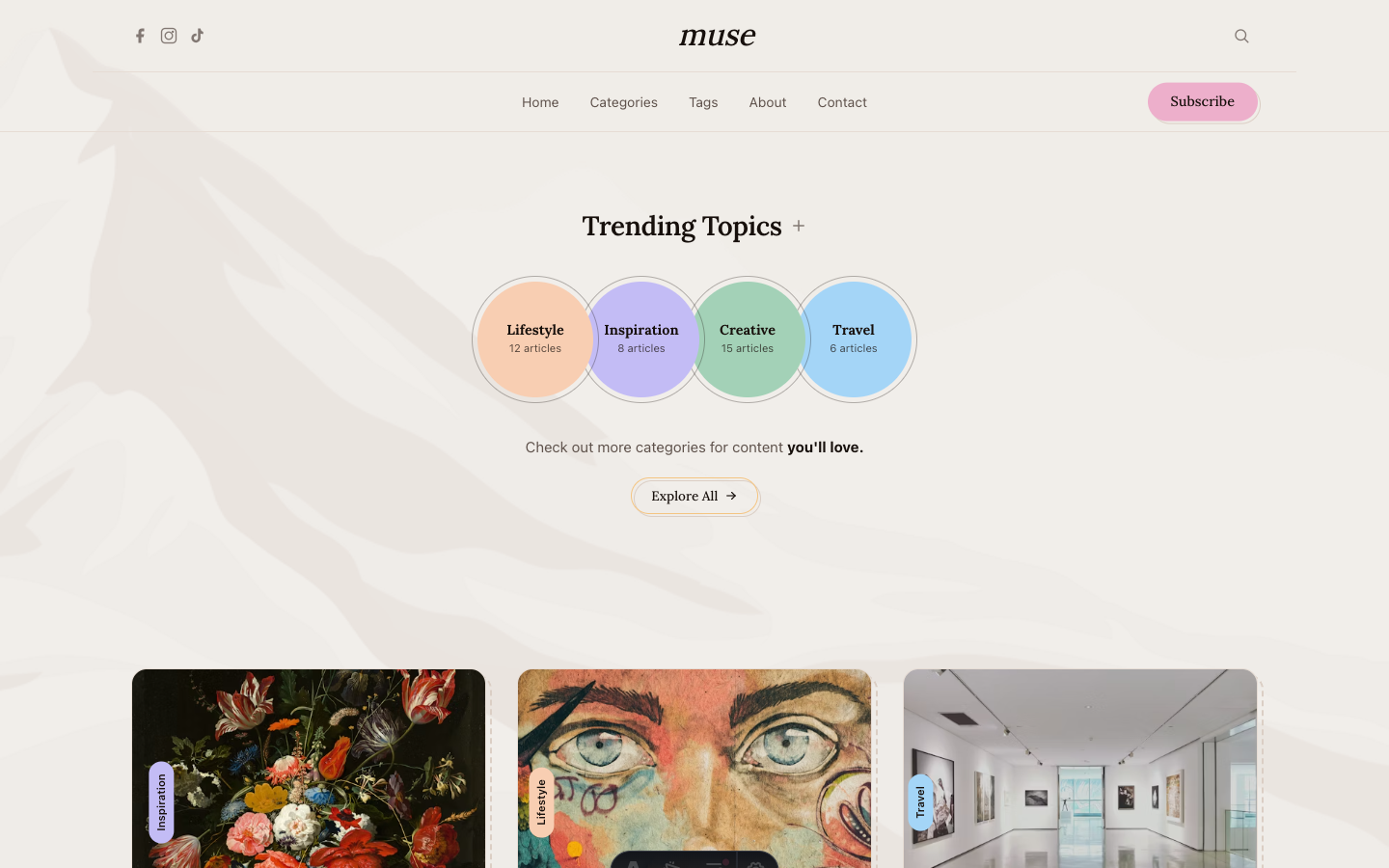
The shortcut is to start from a production-ready Astro theme and pour your content into it. A good theme already has the home page, blog index, post layout, about and contact pages, navigation, SEO tags and responsive design built and tested. You change the config, drop in your Markdown, and you have a finished site. Themes built on Astro 7 and Tailwind v4 also keep you current with the ecosystem instead of inheriting an aging WordPress design.
If editing code is a blocker, you can do this part visually: the AeroLaunch builder lets you change text, swap images and rearrange sections in a point-and-click editor, then export a real Astro project.
Step 6: Rebuild dynamic features
Here is where WordPress plugins get replaced. Map each feature you actually use to a focused tool:
- Contact forms - a form service like Formspree, FormSubmit or Netlify Forms. No backend required.
- On-site search - Pagefind, a static search library that indexes your built site. (This very site uses it.)
- Comments - giscus (GitHub Discussions) or a hosted service like Disqus.
- Newsletter - embed your provider, such as Kit, Buttondown or Mailchimp.
- E-commerce - Snipcart, Shopify’s headless setup, or Stripe payment links for simple cases.
Most sites only need two or three of these, which is why the rebuild is smaller than it looks at first.
Step 7: Preserve your SEO (do not skip this)
This is the step that decides whether your migration is a win or a setback. Search engines have years of equity tied to your existing URLs, so the goal is continuity.
- Keep your URL slugs identical wherever you can. If a post lived at
/blog/my-post/, keep it there. - Add 301 redirects for any URL that does change. On Cloudflare, Netlify or Vercel this is a simple redirects file or config entry.
- Recreate your metadata - title tags, meta descriptions and canonical tags - for every page. A good Astro theme exposes these per page.
- Regenerate and submit your sitemap. The official
@astrojs/sitemapintegration builds one automatically. Resubmit it in Google Search Console after launch. - Preserve heading structure (one
h1, logicalh2/h3) so your on-page SEO carries over. - Add structured data where it helps -
BlogPostingschema on articles, for example.
Because Astro sites are static and fast, your Core Web Vitals usually improve after the move, which is a ranking signal in your favor rather than against you.
Step 8: Deploy
Push your project to a static host. Cloudflare Pages, Netlify and Vercel all have generous free tiers that comfortably handle a static Astro site, which is how migrants routinely cut their hosting cost to zero. Connect your repository, point your domain, and your build deploys automatically on every push.
Before you flip your domain over, deploy to a preview URL and click through your top pages, your redirects and your forms. Then switch DNS and resubmit your sitemap.
The middle path: WordPress as a headless CMS
If your editors are attached to the WordPress dashboard, you do not have to give it up. You can run WordPress as a headless CMS: keep writing in WordPress, and let Astro pull the content through the WordPress REST API or WPGraphQL at build time. Your editors keep their familiar workflow, and your visitors get a fast static Astro front end. Astro documents this WordPress-as-CMS pattern directly.
This is a great option when content changes daily and non-technical editing matters more than shedding WordPress entirely.
Common pitfalls to avoid
- Forgetting redirects. The fastest way to lose rankings is to change URLs without 301s. Build the redirect map during your audit.
- Trying to recreate every plugin. Migrate the features you use, not the ones you forgot you installed.
- Skipping the metadata. Titles, descriptions and canonicals are easy to overlook and expensive to lose.
- Rebuilding the design from zero. Unless your brand is highly custom, a theme gets you 90 percent of the way in a fraction of the time.
The fastest way to land the move
A WordPress to Astro migration is mostly two jobs: getting your content out, and rebuilding the front end. The content export is largely mechanical thanks to the converters above. The front end is where time disappears - and where starting from a finished, production-ready theme turns a multi-week rebuild into a weekend.
If you want the speed and savings of Astro without rebuilding the design by hand, a ready theme is the shortcut. Pick one that fits your site, drop in your exported Markdown, set your redirects, and ship.
And if you would rather keep your current design exactly as it is and hand the whole move off, that is literally what our WordPress to Astro migration service does: a 1:1 rebuild of your site, SEO preserved, hosting included, delivered in 7-21 days at a fixed price. It starts with a free audit of your site - no call, no obligation.
Frequently asked questions
Will I lose my SEO rankings when I move from WordPress to Astro? +
Not if you migrate carefully. Keep your existing URL slugs, add 301 redirects for any URLs that change, recreate your title tags, meta descriptions and canonical tags, regenerate your sitemap, and resubmit it in Google Search Console. Because Astro ships static HTML that loads far faster than most WordPress sites, Core Web Vitals usually improve after a migration, which can help rankings rather than hurt them.
What happens to my WordPress plugins? +
Plugins do not transfer. This is the single biggest adjustment. In Astro you rebuild the features you actually use with focused tools: a form service for contact forms, Pagefind for on-site search, giscus for comments, and a payment provider for checkout. Most sites use far fewer plugin features than they think, so the rebuild is smaller than expected.
Can non-technical people still edit the site after moving to Astro? +
Yes, with the right setup. You can keep WordPress as a headless CMS so editors keep their familiar dashboard while Astro renders the fast front end. Or you can edit content directly in Markdown, or use a visual editor like the AeroLaunch builder to change text, images and sections without touching code.
How long does a WordPress to Astro migration take? +
A small blog or brochure site is typically a weekend of work if you start from a ready-made theme. A large site with hundreds of posts, custom post types and complex functionality can take a few weeks. Starting from a production-ready Astro theme removes the slowest part, which is rebuilding the design and layout from scratch.
Is Astro free to use? +
Yes. Astro is free and open source under the MIT license. You only pay for hosting, and most Astro sites run comfortably on the free tier of Cloudflare Pages, Netlify or Vercel because they are static. A premium theme is an optional one-time cost that saves you the design and build work.
Start from a production-ready Astro theme
Skip building the design from scratch. These themes are full Astro 7 + Tailwind v4 projects you own outright - and you can edit them visually, no code, with the AeroLaunch builder.