How to Make a Contractor Website Without Code
A plain step-by-step guide for builders and trades: pick a design, add your phone number, services and job photos in the visual builder, and get your site online.
You run a building or trades business. You want a website where people can see your work and ask you for a quote, and you don’t want to learn code to get one.
This guide shows how to do it with the AeroLaunch visual builder. You start from a finished website design, click on the parts you want to change, and type. Every step happens in your web browser except the last one, putting the site online, which needs some setup. Step 11 explains what’s involved.
Before you start
It goes faster if you put these in one folder first:
- Your business name, and your logo if you have one
- The phone number and email address customers should use
- The services you offer, with a sentence or two about each
- The towns or areas you cover
- Photos of your own jobs. Before and after shots work well.
- Two or three reviews from real customers who said you can use them
Step 1: Pick a design
There are three designs made for builders and trades. Open each demo on your phone, because that’s how most of your customers will see your site.
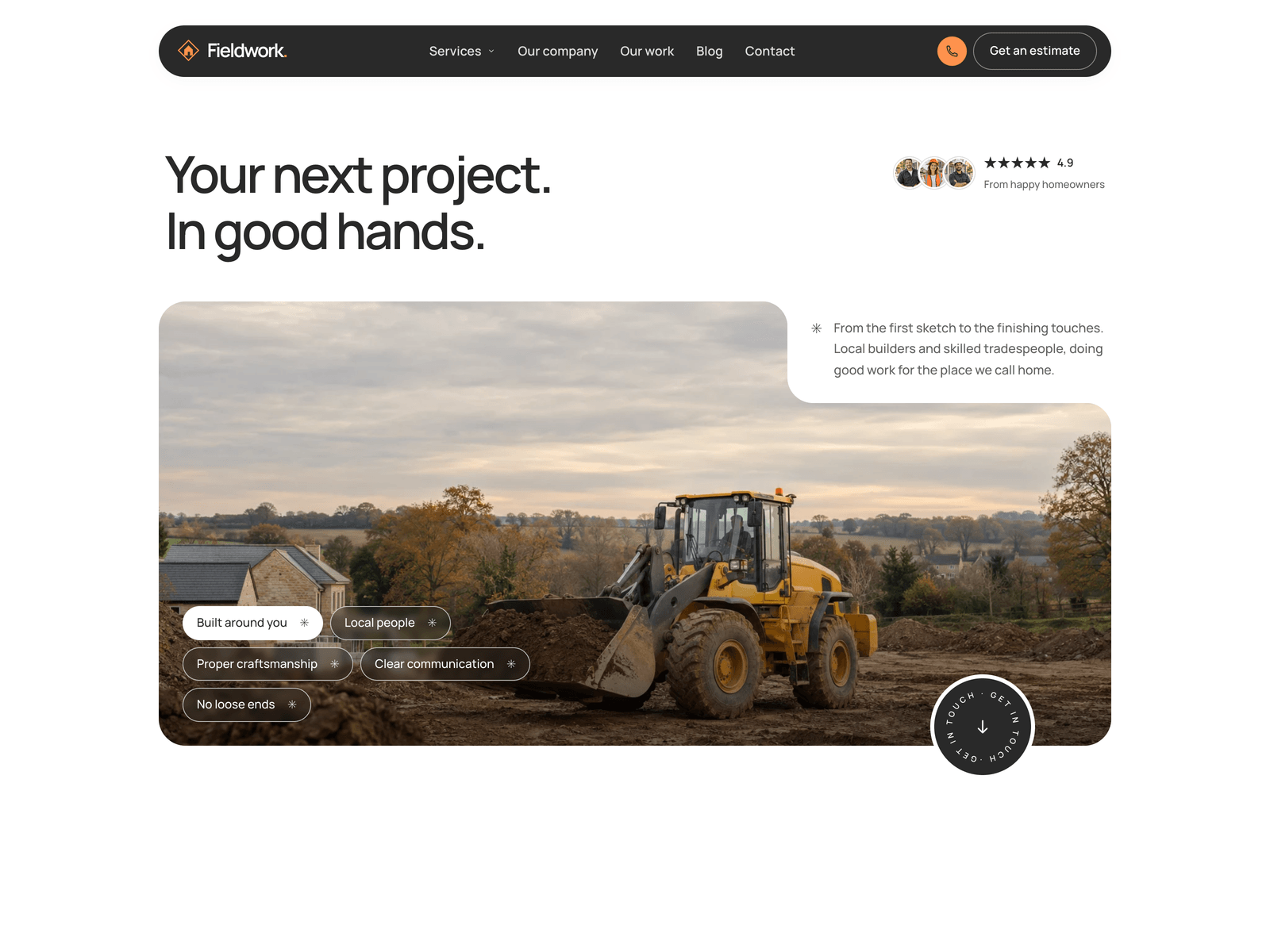
- Fieldwork is warm and built around big photos, for builders, renovation teams and carpenters. Every service and every project gets its own page, and there’s a section for your team.
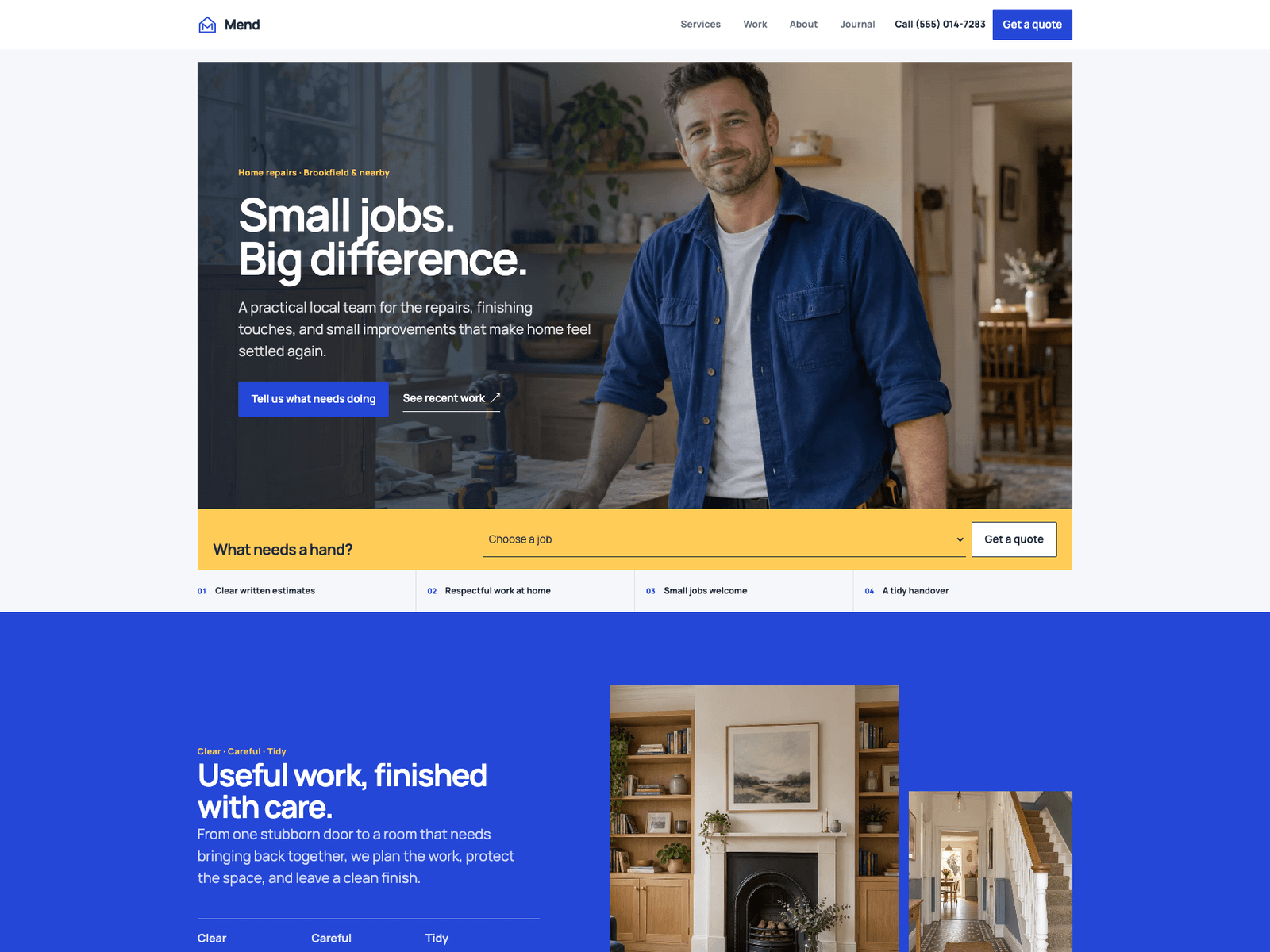
- Mend is bright and practical, for trades that quote by the job. It has six service pages, a page for the towns you cover, and a slider that shows a job before and after.
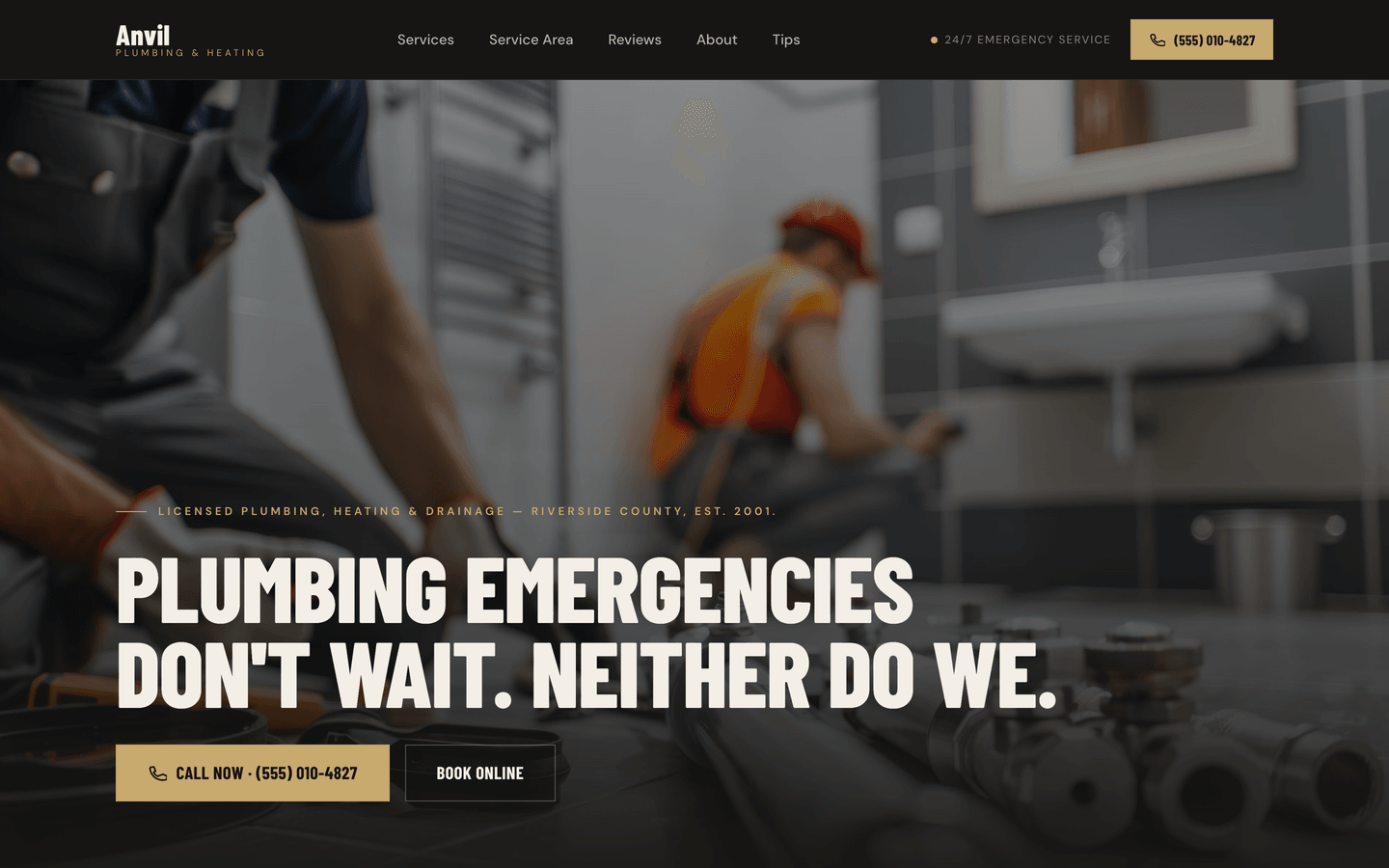
- Anvil is dark with an amber accent, for plumbers, electricians, HVAC and roofers. It has a call bar that stays on screen, a before and after slider, and a map of your service area.
The contractor website templates page puts the three side by side.
Step 2: Get the builder and your design
On the builder page you can buy builder access together with one design, in one payment with no monthly fee. You choose the design inside the builder after you pay. That choice is final, so look through the demos before you decide.
Step 3: Sign in
Go to builder.aerolaunch.app and type the email address you paid with. We email you a sign-in link. Click it and you’re in. There’s no password or licence key to keep track of.
Step 4: Change the words
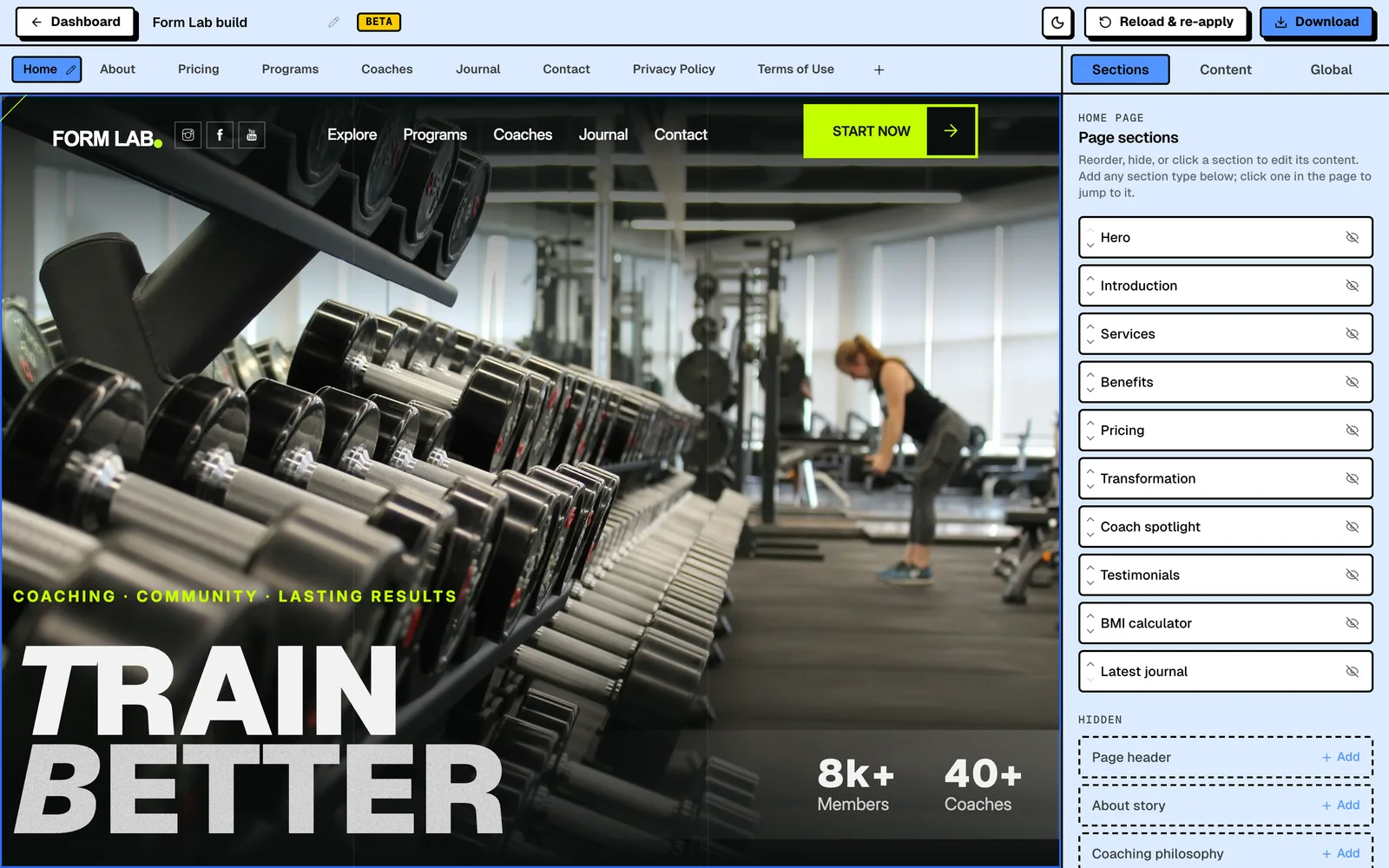
Open your design. Your website is on the left and the editing panel is on the right.

Click any part of the page, for example the big headline at the top. The panel jumps to that part, and each piece of text has its own box. Type your own words and the page changes while you type. Everything saves as you go, so you can close the browser and carry on another day.
Step 5: Add your business details
Click the Global tab at the top of the panel. This is where the details that show on every page live: your business name, your logo, your phone number, your email address and your service area. Fieldwork and Anvil have a box for your opening hours here too.
The phone number has two boxes. The first is the number the way you want people to see it. The second is the phone link, which is the number with your country code, written like the example next to the box. That second box is what makes the call button ring you when someone taps it.
Step 6: Put in your own photos
Click a photo on the page, then click Upload next to it in the panel and choose a photo from your computer. It replaces the old one straight away.
If you picked Mend or Anvil, the before and after slider has two photo boxes, one for each side. Two photos taken from the same spot make the difference easiest to see.
Most photos also have a short description box next to them. Write what the photo shows, such as “New kitchen extension in Riverside”. Screen readers read it out to people who can’t see the photo, and Google uses it to understand what’s in the picture.
Step 7: Your services and past jobs
In Fieldwork and Mend, every service and every project has its own page, and you’ll find them in the Content tab. Change the examples to your own work and add the ones that are missing.
In Anvil, the services are a list in the Services section. Click that section on the page and edit the list in the panel.
Step 8: Choose where quote requests go
The quote form needs a form service to pass requests on to you. Formspree and FormSubmit both email you each request. Sign up with one of them, then go to Global and open Integrations in the builder. Pick the service and fill in what it asks for: the form ID that Formspree gives you, or your email address for FormSubmit.
Until you do this, the form doesn’t send anywhere. Once your site is online, fill in the form yourself and check that the email arrives.
Step 9: Make the colours yours
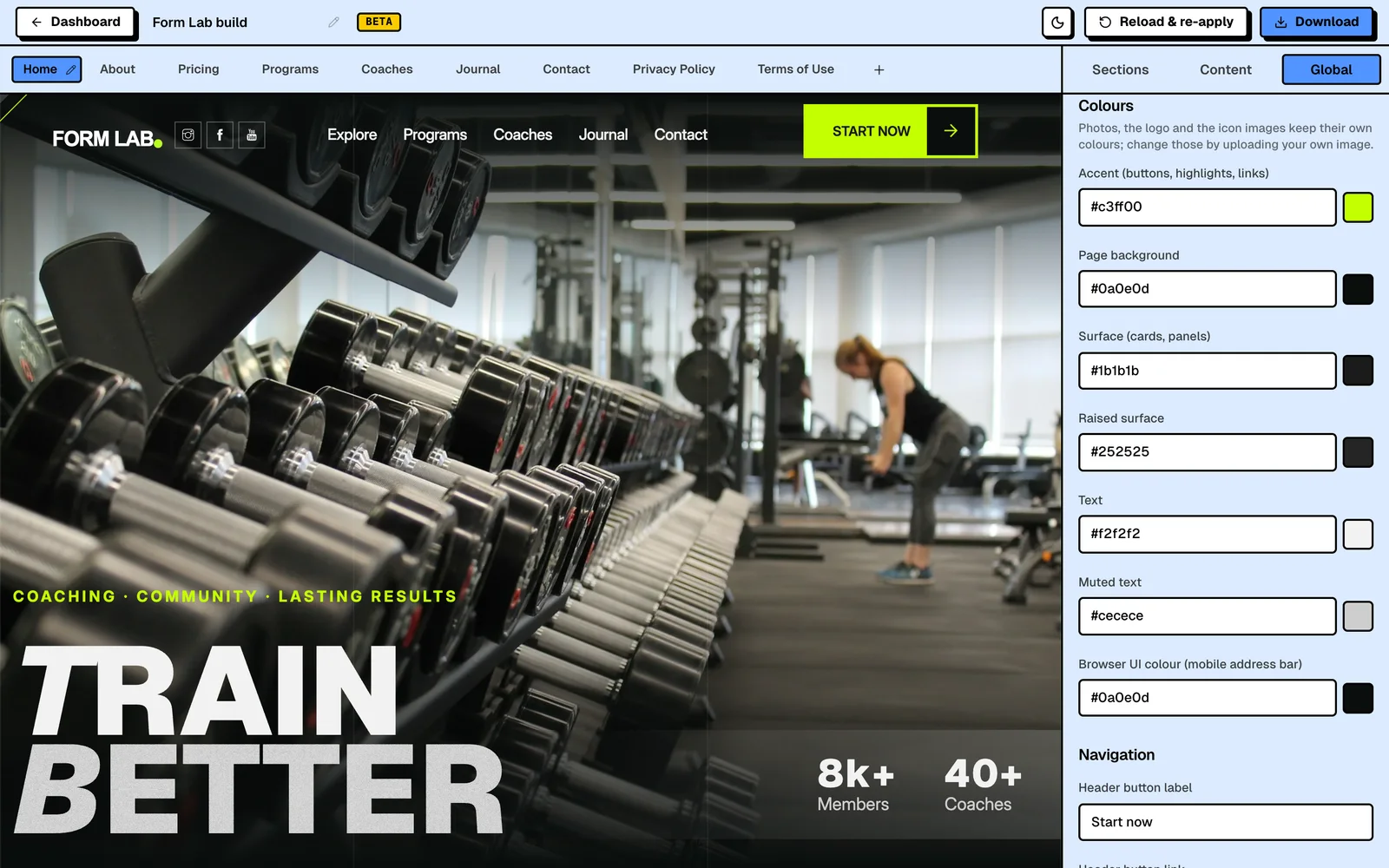
Under Global there’s a Colours section with a colour picker for each part of the design, such as the buttons and the page background. Set the accent to your brand colour and the buttons and highlights change with it. Photos and your logo keep their own colours.
Step 10: Move or hide sections
You can skip this step. In the Sections tab, the arrows move a section up or down the page, and the toggle hides one you don’t need. Hidden sections stay in the list, so you can add them back later.
Step 11: Download and put it online
When you’re happy with it, click Download at the top right. You get your whole website in one zip file.
This is the one step the builder doesn’t do for you. A web host takes your files and puts them online at your address. Hosting a site like this is usually free on Cloudflare Pages, Netlify or Vercel. Setting it up the first time means creating a couple of free accounts and running a few commands, and the Cloudflare deploy guide goes through each one. If that’s not something you want to do, send the zip and the guide to whoever set up your domain or your email.
After that, point your own domain name at the site with the custom domain guide.
Changing things later
Open your build in the builder, make the change, then download it again and put the new version online the same way. There’s no limit on how often you edit or download, so you can add a new project every time you finish a job worth showing.
Rather not do it yourself?
With Done-For-You you send us your text, photos and logo, and we put them into the design you pick. You check a preview and get two rounds of changes. Then you get the finished site and a step-by-step guide to put it online. The design is included in the price.
Frequently asked questions
Can I make a contractor website without knowing code? +
Yes. In the AeroLaunch visual builder you click on the part of the page you want to change and type, and you upload your own photos the same way. Your phone number, services, service area and colours are all set in boxes in the editing panel. The one technical step is putting the finished site online with a web host, and the guide explains how.
What does a contractor website cost to run? +
With the builder you pay once for builder access and one design. There is no monthly fee for either. Hosting a site like this is usually free on Cloudflare Pages, Netlify or Vercel. You pay for your domain name wherever you registered it.
Which design suits a construction company? +
Fieldwork is made for builders, renovation and extension teams and carpenters, with a page for each service and each project. Mend suits trades that quote by the job and has a before and after photo slider. Anvil is aimed at plumbers, electricians, HVAC and roofers, with a call bar that stays on screen. Every word can be changed, so any of the three works for another trade.
How do customers ask me for a quote? +
Through the quote or contact form on your site. You connect it to a form service such as Formspree or FormSubmit, which emails you each request. Until you connect one, the form does not send anywhere.
Can I change the website after it is online? +
Yes. Open your build in the builder, make the change, download it again and put the new version online the same way. There is no limit on how often you edit or download.
Start from a production-ready Astro theme
Skip building the design from scratch. These themes are full Astro 7 + Tailwind v4 projects you own outright - and you can edit them visually, no code, with the AeroLaunch builder.