I Built a Visual Builder for Astro. Here's What It Can (and Can't) Do
A plain look at the AeroLaunch visual builder for Astro: what editing a premium Astro theme in it feels like, why it isn't a drag and drop canvas, what you download at the end, and when your own theme should be wired in instead.
Most people who buy an Astro theme are developers. They unzip the project, open it in their code editor, and change what they need. That’s who Astro was made for. It’s a code-first framework.
But there’s a second group too. They’ve heard that Astro sites are fast and do well in search, and they want that for their own website. What they don’t have is the background to write code. They want to change the headline, swap the photos for their own, add their phone number, and get the site online. In a normal Astro project, every one of those changes means opening a code editor, and that’s where they get stuck.
That’s why I built a visual builder for the AeroLaunch themes. It can also help a developer who builds a site for a client who will never open a code editor.
This post covers what it does, what it doesn’t do, and who it’s for.
What it is
The builder lives at builder.aerolaunch.app. You open a theme, and you see the real site on the left and an editing panel on the right. Click any part of the page, say the hero, and the panel jumps to that section’s fields. Change a word and it changes on the page while you type. Upload a photo and it replaces the old one right there.
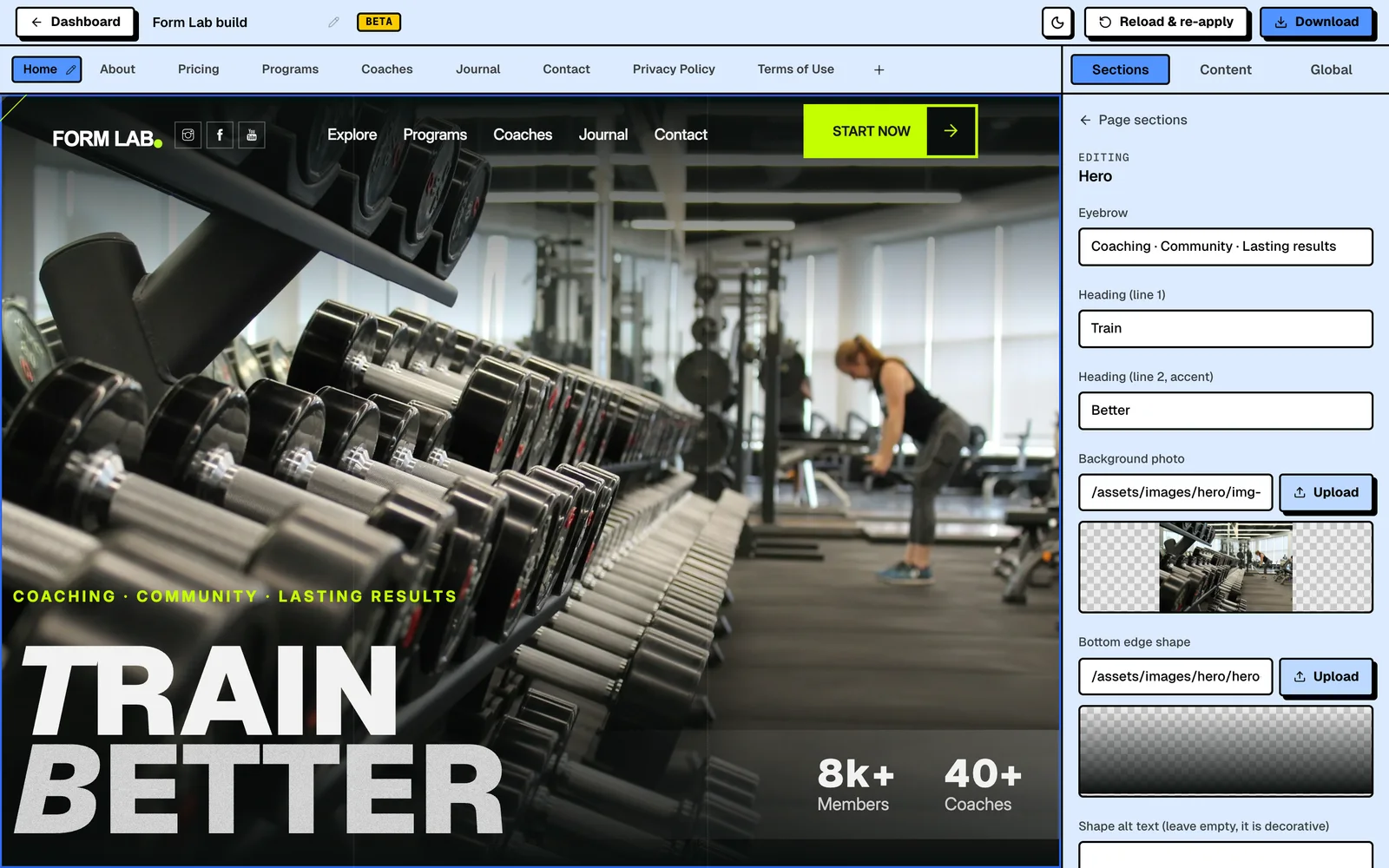
When you’re happy, you press Download and get a complete Astro project as a zip. That’s the finished website. You put it on Cloudflare Pages, Netlify or Vercel, usually for free, and you’re live.
So is it an Astro visual editor or an Astro visual builder? Both words fit, and people search for both. It edits content, which is the “editor” part, but it also changes the structure: which sections a page has, in what order, and which pages exist at all. That’s the “builder” part.
An example: editing Form Lab
Form Lab is the gym and fitness theme.
Click the big “TRAIN BETTER” heading and type a new one. Upload a different background photo for the hero and it swaps in. Add a fourth stat under the headline and it appears next to the other three. Add the Benefits section from the home page to the Contact page and it drops in with its photos and copy intact.
You can also:
- Add a new program. It shows up in the Programs grid straight away, with a placeholder photo so it doesn’t look broken until you upload a real one.
- Add a “Shop” link to the menu with a dropdown under it. The dropdown works in the preview.
- Add a field to the contact form and make it a dropdown with a couple of choices.
- Change the accent colour, for example from lime to orange. The buttons, labels and highlights change with it. Photos, the logo and the icon images keep their own colours; you change those by uploading your own.
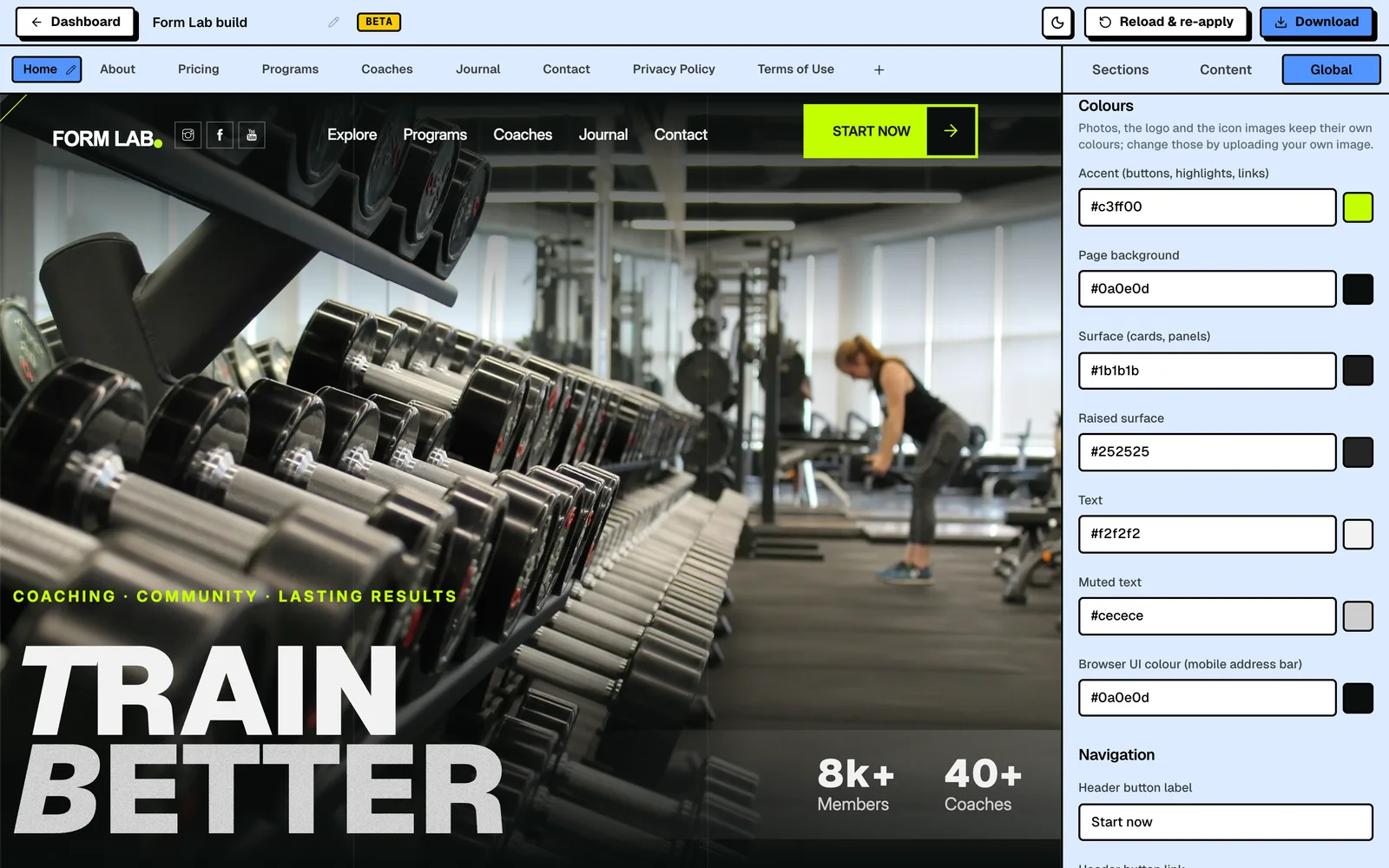
Everything saves as you go. There’s no publish button inside the builder, because the builder isn’t your host. The download is the publish step.
Is it drag and drop?
People search for an “Astro drag and drop builder”, so here is the answer: no, not in the way Webflow or Framer are.
You can’t grab a button and drop it forty pixels to the left. What you can do is work with whole sections. Add one, hide one, move it up or down the page with the arrows. Lists work the same way, so testimonials, pricing plans and menu links can be added, removed and reordered.
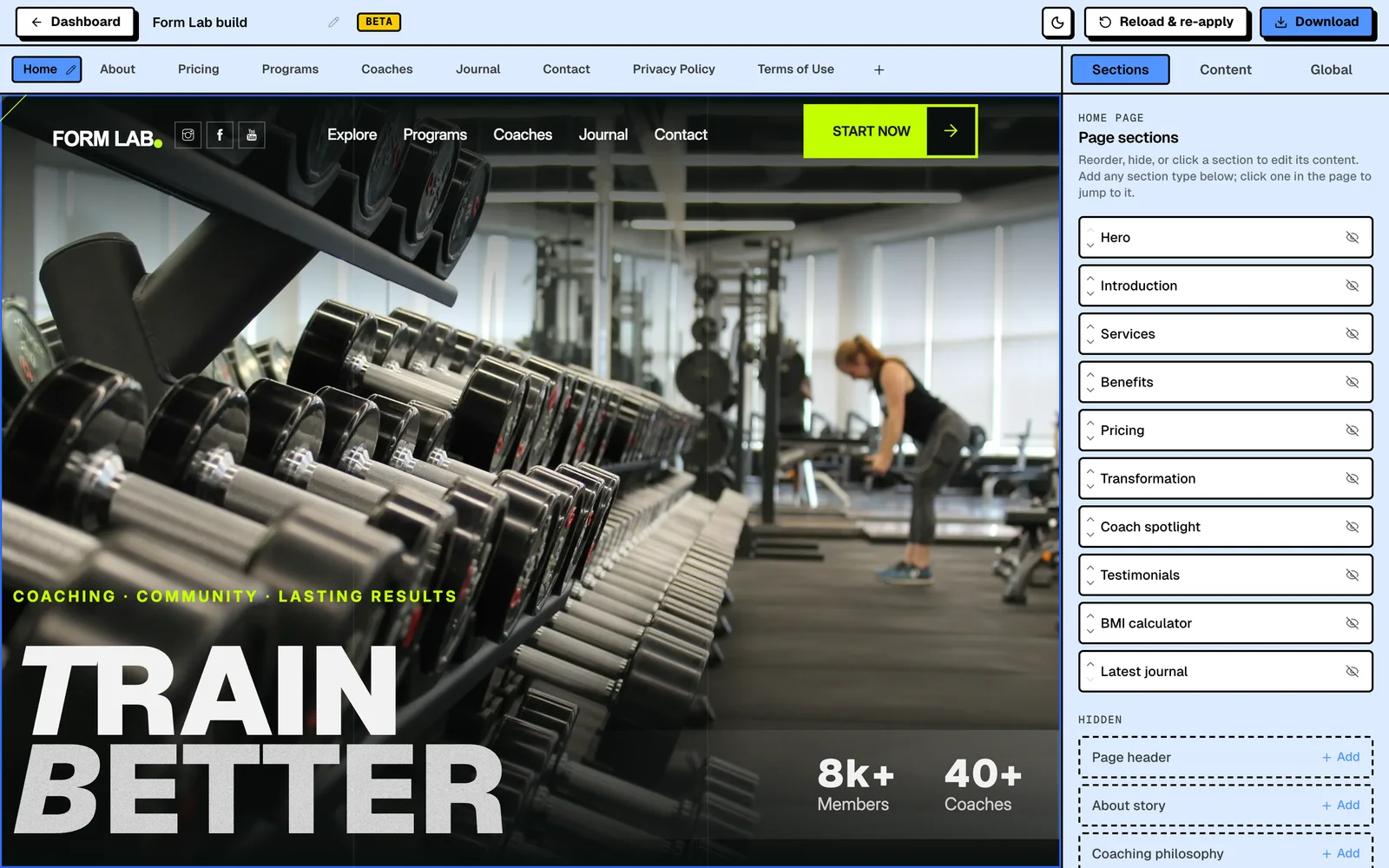
I made it work this way on purpose. Each theme was designed as a set of sections that already work on a phone, a tablet and a wide screen. A freeform canvas lets you build something that looks perfect on your laptop and falls apart on a phone. I’d rather you couldn’t break the design in the first place.
If you want a blank canvas to design on, pixel by pixel, a canvas tool is a better fit. The builder is for editing a site that is already designed, without breaking it.
What you download
It’s a normal Astro project: real source code, with your content in plain files. If you stop using the builder tomorrow, your site keeps running exactly as it is. If you hire a developer later, they get a standard Astro project they can work on straight away.
There’s no monthly fee for the builder. It’s a one-time $39 unlock. Hosting is whatever your host charges, which for a site like this is usually nothing.
The builder unlock doesn’t include any themes. You also need to own the theme you want to edit. Buy the theme, sign in to the builder with the same email you bought it with, and it shows up on your dashboard, ready to open. Themes you don’t own yet show up there too, with a button to buy them. If you want everything, the All-Access pass includes every theme and the builder.
One caveat: the builder is where you edit, and the zip is the output. If you or a developer change the code by hand after downloading, those changes live in that copy of the code. They don’t flow back into the builder.
Use it as often as you like
There’s no limit on how often you open the builder, how much you edit, or how many times you download. You can keep up to two builds of the same theme at once, so you can work on two versions side by side. If you own several themes, each one gets its own builds, and you download the finished project whenever you’re ready.
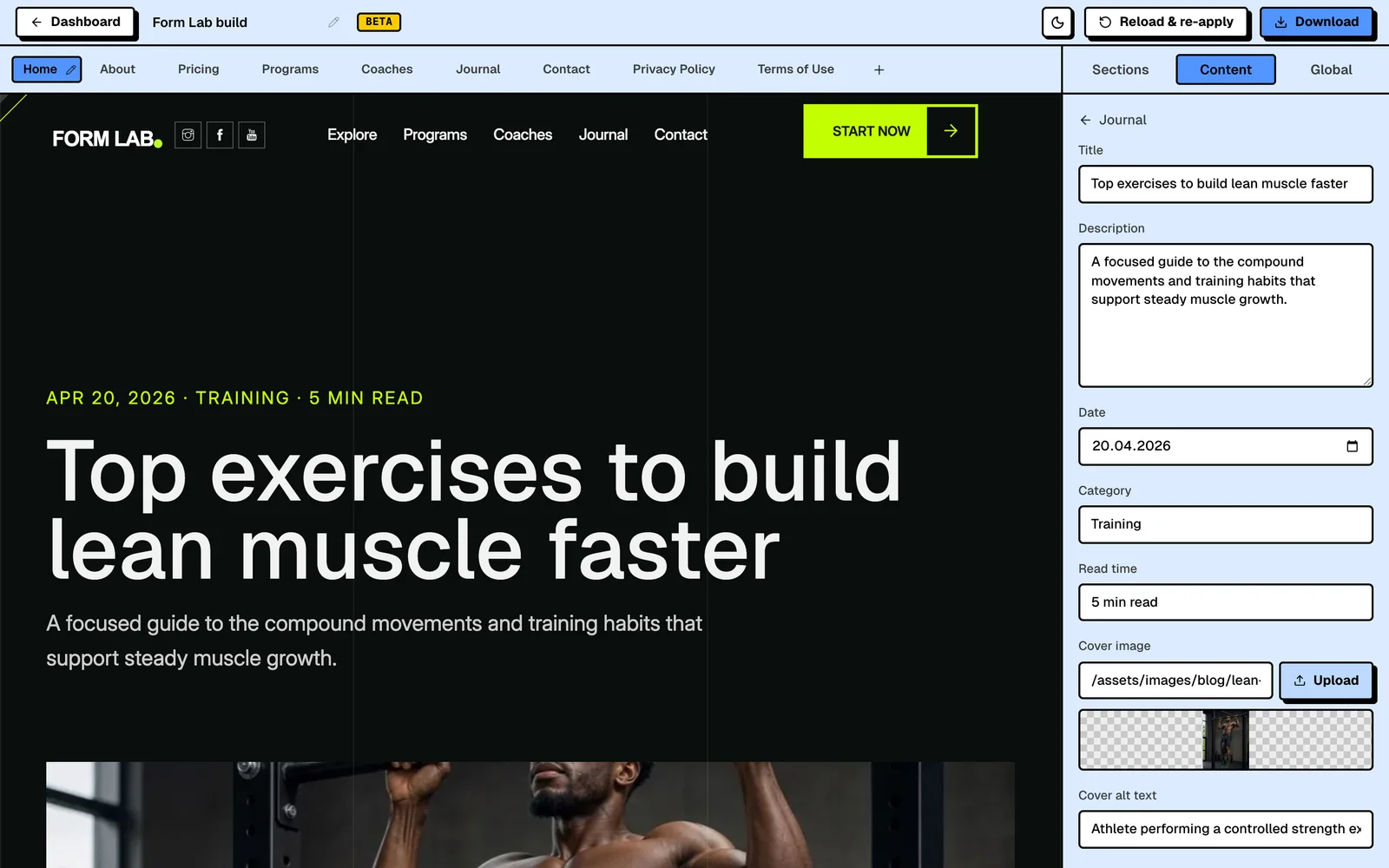
That also makes it work as a simple CMS for your blog. Every theme in the builder has a blog or something like it: a journal on some, tips on Anvil, podcast episodes on Dispatch. To publish a new post, open your build, add the post in the Content tab, download the project again and deploy it. The new post is in the downloaded code, with its own page. If you’ve changed the code by hand since your last download, those changes won’t be in the new download, for the reason above.
Which themes work with it
Right now 12 of the 35 Astro premium themes in the collection are fully editable in the builder:
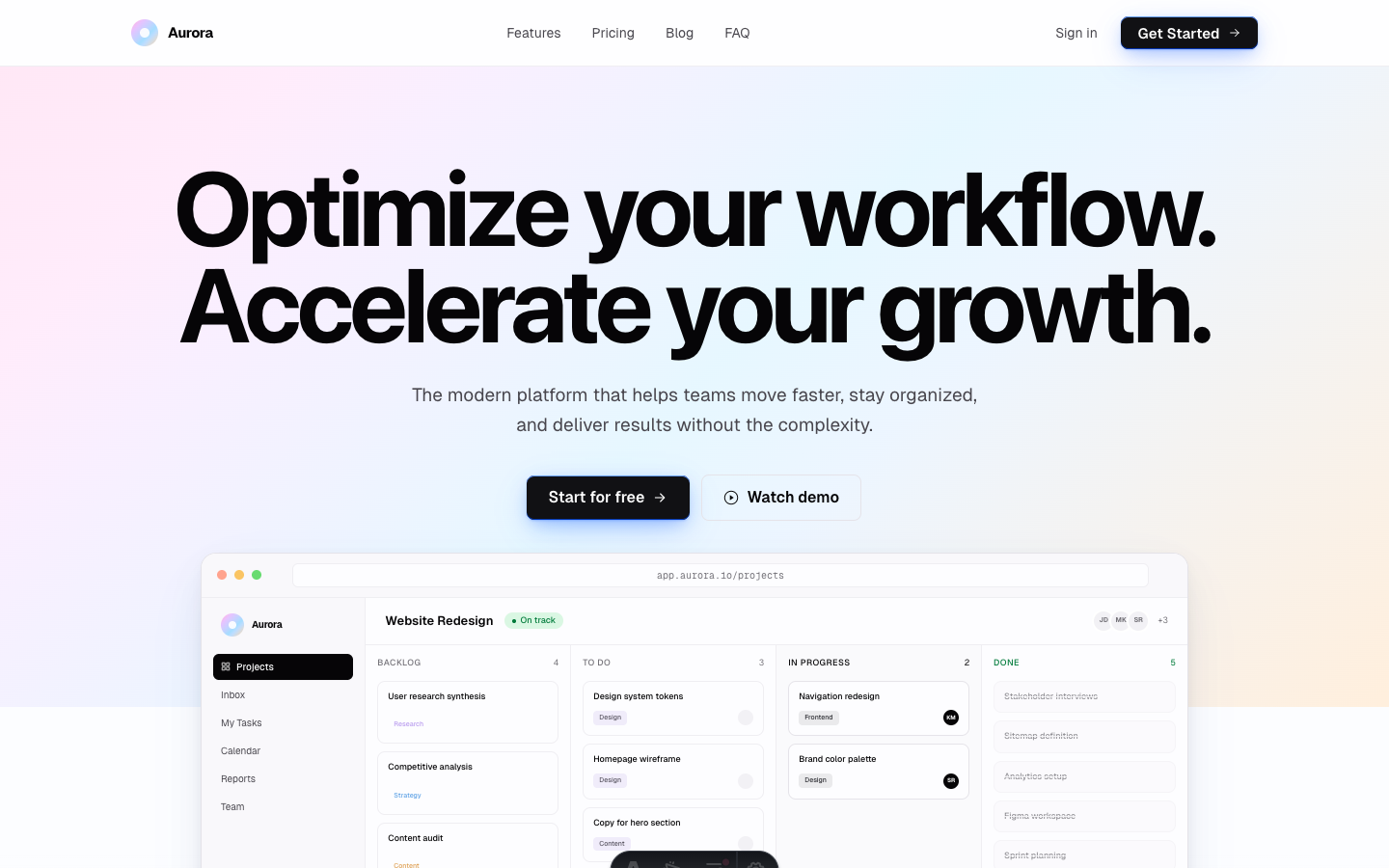
- Aurora (the free one)
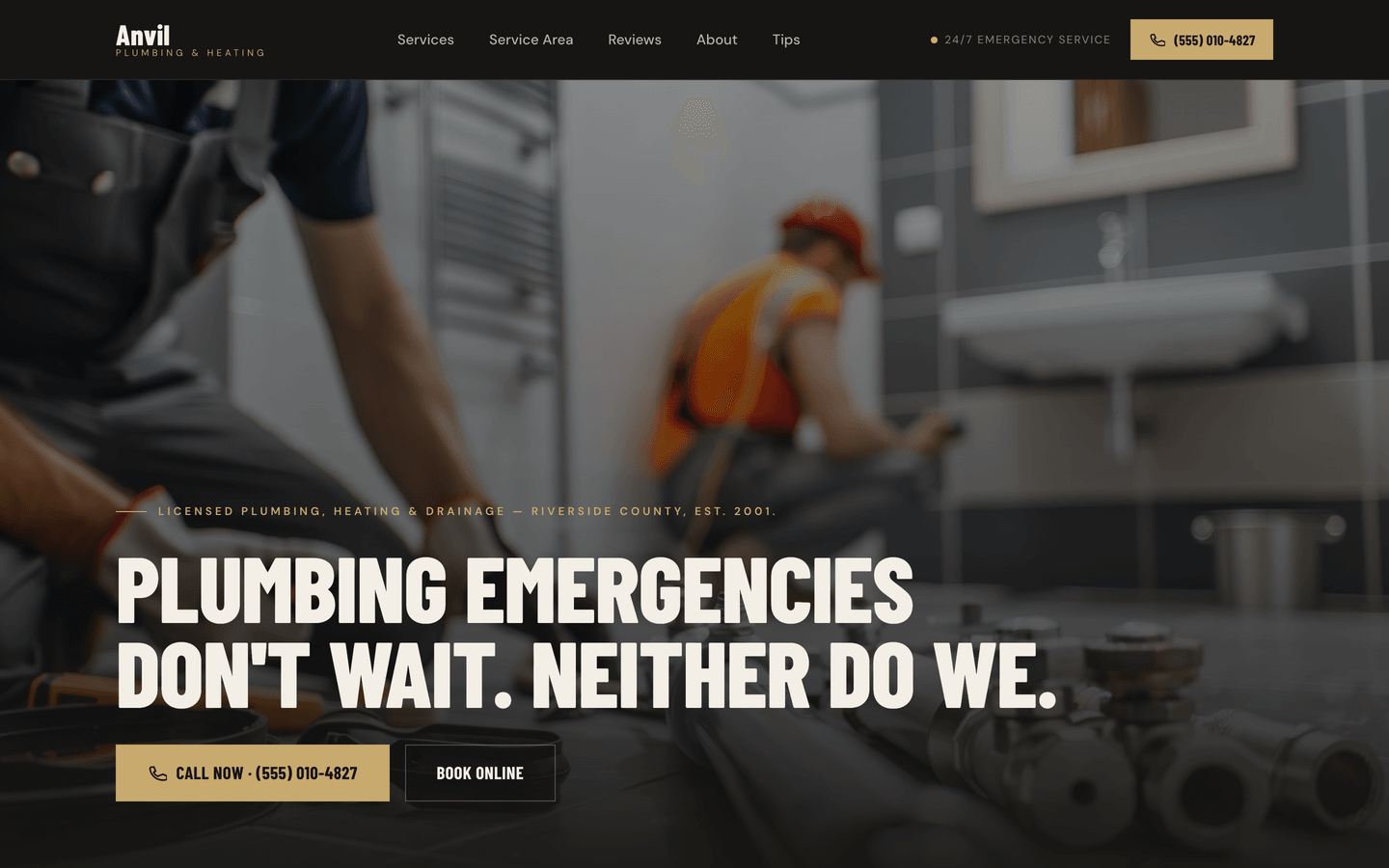
- Anvil, for trades and local services
- Aperture, for photographers
- August, a personal portfolio
- Boost, for growth and SaaS
- Cirrus, for apps and fintech
- Dispatch, for podcasts and newsletters
- Falcon, for agencies
- Form Lab, for gyms and coaches
- Mend, for trades and local services, with a before-and-after photo slider
- Slab, for startups
- Studio, for creative agencies
On the themes page they carry a “Visual Builder” badge, so you can tell at a glance. I add themes to it one at a time. Bringing a theme in means going through every section the way an editor would and fixing whatever doesn’t behave, before it gets the badge.
What if you already have an Astro site?
Then the builder as it is won’t open it. It only knows how to edit themes that have been prepared for it.
That’s what Make It Editable is for. It works with any Astro project: a theme you bought somewhere else, one you built yourself, or one an agency built for you, as long as it builds with a current version of Astro. Your design stays exactly as it is. The project gets the data attributes and small content model the builder needs to know what’s editable, and then it shows up in your builder account and you edit it the same way as the AeroLaunch themes. It takes 5 business days from when I have your repository and brief, builder access is included, and it’s a one-time payment.
Where it’s not the right tool
A few cases where I’d point you somewhere else:
- You want to design from a blank page. Use a canvas tool. The builder edits finished designs; it doesn’t create new ones.
- You have a team with editors, reviewers and approval steps. A hosted editing platform with roles and workflows fits that better. I compared the main options in Astro visual editors compared.
- You need a full CMS that non-technical people log into every day. Look at the EmDash editions of some themes, or at a Git-based CMS such as Decap or Keystatic, which the no-code Astro builders roundup covers.
- You’re still deciding between WordPress and Astro. Start with WordPress vs Astro, then come back.
If you want to try it
Have a look at the builder page first. There’s a short video of the editor with a real theme open, so you can see what you’d be working with before you pay for anything. Then pick a theme with the Visual Builder badge on the themes page. Aurora is free, so you can get it and look through the theme at no cost. Once you add builder access, it shows up in the builder like any theme you own.
Frequently asked questions
Is there a visual builder for Astro? +
Astro doesn't ship one, but you can use one on top of it. The AeroLaunch visual builder opens a finished Astro theme in your browser, lets you click any section to edit its text, images, links and settings, shows the change on the page as you type, and gives you a complete Astro project to download when you're done.
Is the AeroLaunch builder drag and drop? +
Not in the freeform sense. You can't drag a button to an arbitrary spot on the page. You work with whole sections instead: add them, hide them, and move them up or down the page. That keeps the design intact on every screen size, which is easy to break when you can move anything anywhere.
Can I use the builder with my own Astro theme? +
Out of the box it works with the AeroLaunch themes that support it. If you already have an Astro site, the Make It Editable service wires your own theme into the builder, so you edit it the same way.
Do I need to buy a theme as well as the builder? +
Yes. Builder access lets you use the editor, and you also need to own the theme you want to edit. Once you've bought it, sign in to the builder with the same email and it shows up on your dashboard. The All-Access pass includes every theme and the builder in one purchase.
Can I keep using the builder to update my blog after the site is live? +
Yes. There's no limit on how often you edit or download. Open your build, add the new post in the Content tab, download the project again and deploy it. The new post is included in the code with its own page. You can keep up to two builds of the same theme at once.
Do I need to know code to use it? +
No. Everything happens in the browser with fields, image uploads and buttons. You only meet code if you want to, because what you download is a normal Astro project you can open in any editor.
Start from a production-ready Astro theme
Skip building the design from scratch. These themes are full Astro 7 + Tailwind v4 projects you own outright - and you can edit them visually, no code, with the AeroLaunch builder.